MyChart Billing – Complete Guide to Bills, Payments, and Insurance
Need to check a medical bill or make a payment online? MyChart Billing gives eligible patients a convenient way to view healthcare charges, manage balances, and make payments through the patient portal.
You can also use available billing tools to review statements, insurance information, payment history, and financial assistance options. We explains how MyChart Billing works and how to handle common billing and payment issues.
What Is MyChart Billing?
MyChart Billing is the section of your patient portal where available healthcare billing information is displayed. Depending on your healthcare organization, you may be able to view balances, statements, charges, payments, insurance details, and other financial information.
How to View Your Bill in MyChart
You can review available billing information directly from your MyChart account. These steps show where to look for your balance, charges, and statements.
- Open MyChart and go to the Billing section.
- Select Billing Summary or the available billing option.
- Review your outstanding balance.
- Open a billing account to see available details.
- Check recent charges and payment information.
- Select a previous statement if you need older billing details.
How to Pay a Bill in MyChart
MyChart can allow eligible patients to pay a medical bill online. The payment process is usually completed through the Billing section.
- Open your MyChart Billing section.
- Select the bill or balance you want to pay.
- Choose the amount you want to pay.
- Select an available payment method.
- Enter or confirm your payment information.
- Review the payment details.
- Submit the payment.
MyChart Payment Methods
MyChart can support different payment methods depending on your healthcare organization. The available choices are shown during the payment process.
Pay With a Credit Card
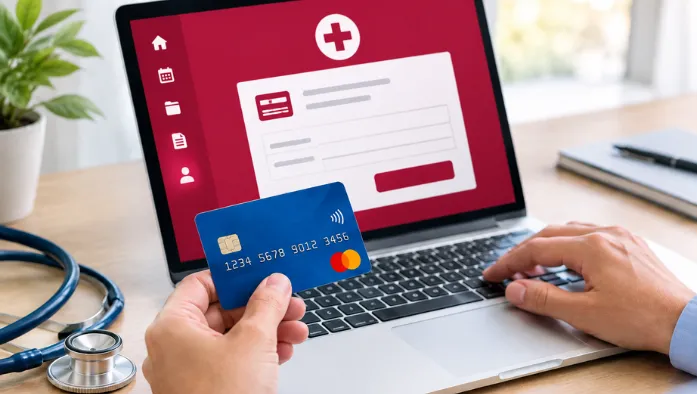
Yes, eligible MyChart accounts may allow credit card payments. The supported card types can vary by healthcare organization.
Pay With a Bank Account
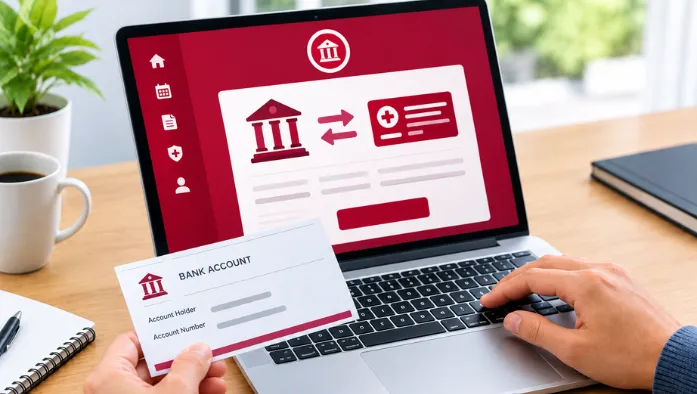
Some organizations allow payments directly from a bank account. Follow the payment instructions shown in your MyChart Billing section.
Save a Payment Method
Some MyChart billing systems allow you to save a payment method for future payments. Only use this feature on a trusted device.


Change Your Payment Method
You may be able to change or update a saved payment method from your billing settings. The available options depend on your healthcare organization.
Are MyChart Payments Secure?
MyChart payments are handled through secure billing services provided by the healthcare organization. You should still protect your account and payment information.
MyChart Payment History and Receipts
Payment history can help you confirm previous transactions and track payments made through MyChart.
How to View MyChart Payment History
Open the Billing section and look for payment history or transaction information. Available records depend on your healthcare organization.
How to Find a Previous Payment
Review your payment history or billing account activity to locate an earlier transaction. Check the date and amount to confirm the payment.
How to Get a MyChart Payment Receipt
After making a payment, look for a confirmation or receipt option. You may also be able to access payment details later through your billing history.
How to Download a Payment Receipt
If MyChart provides a download option, select it from the payment confirmation or history. Save the receipt for your personal records.
How to Check a Payment Confirmation
Review the confirmation number, amount, date, and payment status when available. Contact billing support if a payment appears incomplete or incorrect.
MyChart Insurance Information
MyChart provides access to insurance details connected to your healthcare account. You can view available coverage information, deductibles, and out-of-pocket costs through the Insurance Summary section when these options are supported.
If your insurance changes, you may be able to add, update, or remove coverage information in MyChart. Some organizations may require additional verification or may ask you to contact them directly for insurance changes.
MyChart Payment Plans
The following points explain how MyChart payment plans work, including setup, payments, changes, cancellation, and financial assistance.
- A payment plan can help eligible patients spread certain medical expenses over time.
- You can find available payment plan options in the Billing section when supported.
- Review the available terms and select an eligible plan to complete the setup.
- Monthly payments may divide your qualifying balance into scheduled installments.
- The payment amount, schedule, and terms depend on your healthcare organization.
- Changes or cancellation options may be available through MyChart, depending on the plan.
- Contact billing support if you cannot modify or cancel your payment plan online.
- If you cannot afford your bill, check for payment plans or financial assistance options.
MyChart Billing Notifications
Billing notifications help you stay informed about statements, payments, reminders, and other billing activity. The following points explain the main notification types and how to manage them.
MyChart Billing Notifications
MyChart may send alerts for available billing activity. The notification types depend on your healthcare organization’s settings.
New Billing Statement Notifications
You may receive an alert when a new statement becomes available electronically. Open MyChart to review the statement details.
Payment Reminder Notifications
Payment reminders can alert you about an outstanding balance or upcoming payment. Check the related billing account before making a payment.
Payment Confirmation Notifications
After a successful payment, MyChart may provide a confirmation through the portal or another supported notification method.
Automatic Payment Notifications
If Auto Pay is enabled, available notifications may inform you about an upcoming or completed automatic payment.
How to Manage Billing Notifications
Review your MyChart communication preferences and device settings. Enable the notifications you want to receive.
MyChart Billing Problems and Solutions
Billing issues can involve missing statements, failed payments, declined cards, or unavailable billing information. The following problems are among the common issues you may encounter.
MyChart Bill Not Showing
Your bill may not appear while billing or insurance processing is still in progress. Check again later or contact the billing department.
MyChart Billing Information Not Available
Billing features may not be enabled for your account or organization. Contact your healthcare provider if the Billing section is missing.
MyChart Payment Not Working
A technical issue or incorrect payment information may prevent a payment. Review the payment details and try again.
MyChart Payment Failed
The payment may fail because of incorrect information, a connection problem, or a payment-service issue. Verify your details before retrying.
MyChart Payment Declined
Your card or bank may decline the transaction. Check with your payment provider or use another available payment method.
MyChart Pay as Guest Not Working
Incorrect billing information or a temporary system issue can prevent guest payment. Check your statement details and try again.
MyChart Payment Confirmation Not Received
A confirmation may be delayed even after a payment is submitted. Check your payment history before submitting another payment.
MyChart Receipt Not Showing
The receipt may not appear immediately or may be available under payment history instead. Check your billing account for the transaction.
MyChart Billing Statement Not Available
A statement may not be ready or may not be provided electronically. Contact your healthcare organization if you need a copy.
MyChart Billing on Phone and Computer
You can access available billing features through the MyChart mobile app on supported iPhone and Android devices. The app helps you review eligible balances and make payments from your phone when these features are available.
You can also open MyChart on a computer using a supported web browser to access Billing, statements, payments, and other available tools. To pay through the app, select the eligible balance, choose a payment method, review the details, and submit your payment.
How to Keep Your Billing Information Secure
These simple steps can help protect your MyChart account and keep your billing and payment information secure.
- Use a strong and unique MyChart password.
- Do not share your account credentials.
- Avoid making payments on public or untrusted devices.
- Log out after using MyChart on a shared computer.
- Keep your phone protected with a screen lock.
- Check the website or app before entering payment information.
Conclusion
MyChart Billing makes it easier to manage eligible medical bills, payments, statements, insurance information, and other financial details from one place. Depending on your healthcare organization, you also have access to payment plans, Auto Pay, estimates, financial assistance, and paperless billing.
If a bill or payment does not appear correctly, check your billing account and payment information first. For organization-specific billing questions, contact the healthcare provider’s billing department.