MyChart Appointments – Complete Guide to Scheduling and Managing Appointments
Need to schedule a doctor’s visit without calling the office? MyChart Appointments can make it easier to find available times, manage upcoming visits, and keep your appointment information in one place.
Depending on your healthcare organization, you may be able to schedule, request, reschedule, or cancel appointments through MyChart.
What Are MyChart Appointments?
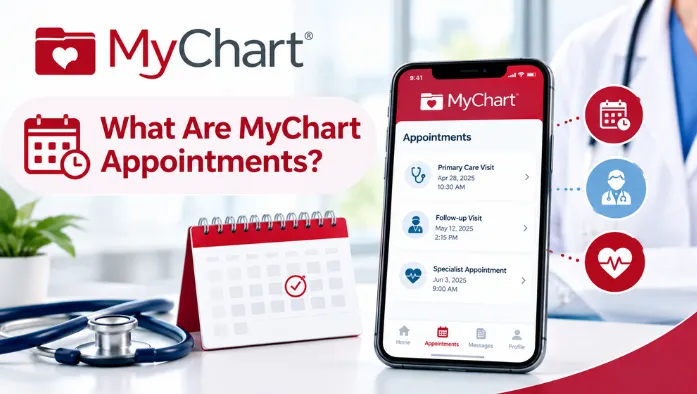
MyChart Appointments help eligible patients manage healthcare visits through their MyChart account. Available appointment options depend on the healthcare organization, provider, and type of care you need.
How to Schedule an Appointment in MyChart
You can schedule an eligible visit by selecting the visit type, provider, location, and available time. Follow these steps to complete your MyChart appointment booking.
- Open the appointment or scheduling section in MyChart.
- Select the option to schedule an appointment.
- Choose the reason or type of visit.
- Select your preferred healthcare provider.
- Choose an available healthcare location.
- Select a suitable date and time.
- Review your appointment details.
- Confirm your MyChart appointment.
Schedule or Request an Appointment in MyChart
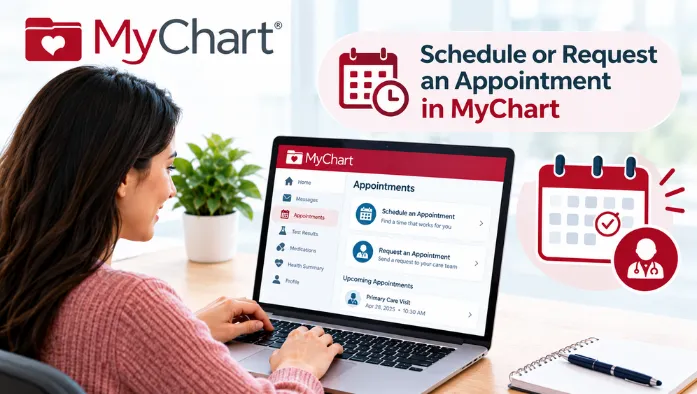
MyChart may offer either direct scheduling or appointment requests depending on the provider and visit type. These options work differently.
Schedule an Appointment Yourself
If online scheduling is available, you can select an open appointment time and confirm the visit directly through MyChart.
Request an Appointment From Your Provider
Some appointments require a request instead of immediate scheduling. Submit the requested information and wait for your healthcare organization to respond.
What Is the Difference Between Scheduling and Requesting an Appointment?
Scheduling lets you choose an available appointment time directly, while requesting an appointment asks the provider’s office to arrange or confirm a visit.
How Long Does a MyChart Appointment Request Take?
The response time can vary by healthcare organization and appointment type. Check your MyChart messages or contact the provider’s office if you need an update.
How to Find an Appointment in MyChart
Your scheduled visits can usually be found in the appointments section of MyChart. Select a visit to review the information available for it.
View Upcoming MyChart Appointments
Open your appointments section to see scheduled future visits. Select an appointment for more information.
View Past MyChart Appointments
Past appointments remain available in your appointment history. The amount of information shown can vary by healthcare organization.
View Appointment Details
Select an appointment to review its available details, such as the visit type, provider, date, time, and location.
Find Appointment Date and Time
The scheduled date and time are displayed with the appointment details. Check them before your visit to avoid arriving at the wrong time.
View Appointment Location
MyChart can display the location associated with an appointment when that information is available. Review it before traveling to the healthcare facility.
View Provider Information
Your appointment details may show the provider associated with the visit. This can help you confirm that you selected the correct appointment.
View Appointment Instructions
Some appointments include preparation or arrival instructions. Review these details before your scheduled visit.
How to Reschedule a MyChart Appointment
You can change an eligible appointment by selecting a new available date and time in MyChart. Follow these steps to reschedule your visit.
- Open your upcoming appointments in MyChart.
- Select the appointment you want to change.
- Choose the reschedule option.
- Select a new available date and time.
- Review the updated appointment details.
- Confirm the rescheduled appointment.
- Contact your provider if the reschedule option is unavailable.
How to Cancel a MyChart Appointment
You can cancel an eligible upcoming appointment through MyChart. Follow these steps to cancel your visit or contact your provider if the option is unavailable.
- Open your upcoming appointments in MyChart.
- Select the appointment you want to cancel.
- Choose the cancel appointment option.
- Provide a cancellation reason if requested.
- Review the cancellation details.
- Confirm the appointment cancellation.
- Contact your provider if you cannot cancel the appointment online.
MyChart Appointment Details
MyChart keeps key information about your scheduled visits in one place. The following sections explain the appointment details you can review before your visit.
View Appointment Date and Time
Check the scheduled date and time before your visit. This is especially useful if you have multiple upcoming appointments.
View Appointment Location
Review the location listed for your appointment. Some visits may take place at a clinic, hospital, or another supported location.
View Provider Details
Check the provider information associated with the appointment. This helps confirm who you are scheduled to see.
View Pre-Visit Instructions
Some healthcare organizations provide instructions that should be completed before your visit. Review them ahead of time.
View Appointment Questionnaires
You may be asked to complete questionnaires before an appointment. Available questionnaires depend on the visit and provider.
Get Directions to Your Appointment
When location information and directions are available, you can use the provided details to help find the healthcare facility.
MyChart Appointments for Family Members
MyChart allows authorized users to schedule and manage appointments for family members through proxy access. The available options depend on the permissions provided by the healthcare organization.
Parents, guardians, or other authorized family members may be able to manage eligible appointments for another patient. The exact access and appointment features can vary by organization.
MyChart Appointment Problems & Solutions
If you cannot schedule, cancel, reschedule, or access an appointment in MyChart. The following sections cover common MyChart appointment problems and their possible solutions.
MyChart Cannot Schedule an Appointment
Check whether the appointment type is available online. If MyChart does not offer scheduling, contact the provider’s office.
MyChart Appointment Scheduling Not Working
Refresh MyChart and try the scheduling process again. If the problem continues, check whether the appointment type requires direct assistance.
No Appointments Available in MyChart
No available times may simply mean that the provider’s current schedule is full. Check other dates or contact the provider about additional availability.
MyChart Appointment Time Not Available
Appointment times can become unavailable quickly. Try another available time or check again later if your preferred time is no longer listed.
MyChart Appointment Request Not Working
Review the information in your appointment request and try submitting it again. Contact the provider if MyChart continues to reject the request.
MyChart Appointment Not Showing
Check the appointments section again and make sure the scheduling process was completed. If a confirmed visit is missing, contact your healthcare organization.
Cannot Cancel MyChart Appointment
Some appointments cannot be canceled through MyChart. Contact your provider’s office if the cancellation option is unavailable.
Cannot Reschedule MyChart Appointment
The rescheduling feature may not be available for every appointment. Contact your healthcare organization if you cannot change the appointment online.
MyChart eCheck-In Not Working
Check your internet connection and try opening the appointment again. If required information cannot be submitted, contact your healthcare organization.
MyChart Video Appointment Not Working
Check your device, internet connection, camera, and microphone before joining again. If the video visit still does not work, contact your provider.
MyChart Appointment Information and Updates
Keep your appointment information updated by reviewing each scheduled visit before the appointment date. This can help you notice changes or new instructions.
Change Appointment Information
If MyChart provides an option to change eligible appointment details, follow the instructions shown with the appointment.
Update Information Before an Appointment
Review your available personal, insurance, or visit information before the appointment and update it when MyChart allows.
Review Appointment Instructions
Check the appointment details for arrival times, preparation requirements, questionnaires, or other instructions.
Check Appointment Status
Review the appointment section for the latest information available about your scheduled visit.
View Changes to an Upcoming Appointment
If your healthcare organization updates an appointment, check the appointment details for the new information and follow any instructions provided.
What Happens After a MyChart Appointment?
After your visit, MyChart may provide information about the completed appointment. The following sections explain the types of post-visit information you may be able to review.
View Your After-Visit Summary
An after-visit summary may be available after your appointment. It can contain information related to your completed visit.
View Past Appointment Information
Completed appointments may appear in your past appointment history. Select a visit to see the information available to you.
View Available Visit Notes
Some healthcare organizations may make visit notes available through MyChart. Availability depends on the provider and organization.
Review Follow-Up Information
Check your available post-visit information for follow-up instructions or recommended next steps.
Schedule a Follow-Up Appointment
If your provider offers online scheduling for follow-up care, you may be able to arrange the next visit through MyChart.
Conclusion
MyChart Appointments provide a convenient way to schedule and manage eligible healthcare visits online. Depending on your healthcare organization, you may be able to schedule, request, reschedule, cancel, check in, or prepare for appointments through MyChart.
If an appointment option is missing or not working, check whether that visit type supports online scheduling. When MyChart cannot complete the request, your healthcare provider can explain the available options.