MyChart Medical Records – Complete Guide to Accessing Your Health Records
Need to access your medical records online? MyChart allows eligible patients to view available health information through their healthcare organization’s patient portal.
You are able to view visit summaries, test results, clinical notes, medications, and other health records. We provide how to access, download, share, and troubleshoot MyChart medical records.
What Are MyChart Medical Records?
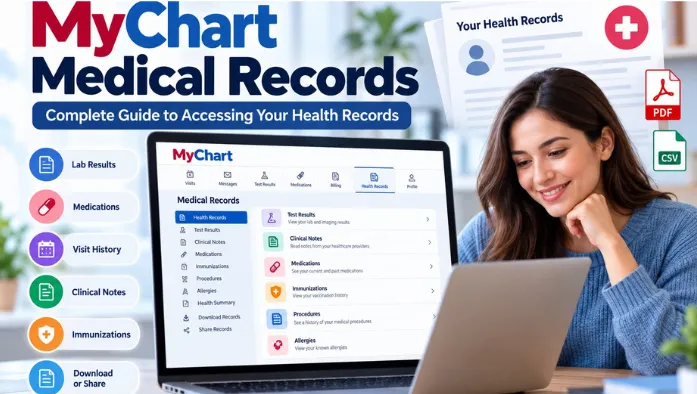
MyChart medical records are health information made available through your patient portal by your healthcare organization. The records you view depend on what your provider releases and supports through MyChart.
Your available records include test results, visit information, clinical notes, medications, allergies, and other health information. MyChart do not contain every document included in your organization’s complete medical record.
How to Access Medical Records in MyChart
Follow these steps to find available medical records in your MyChart account:
- Sign in to your MyChart account.
- Open the menu or health information section.
- Look for available medical records or related health information.
- Select the type of record you want to view.
- Choose a specific record, visit, test, or document.
- Review the available information in MyChart.
- Use available download or print options when supported.
What Medical Records Can You View in MyChart?
MyChart provide access to different types of health information from your healthcare organization. The following records are available depending on your account and provider.
View Visit Summaries
You are able to view summaries from completed healthcare visits. These include available visit information and follow-up instructions.
View Clinical Notes
Some healthcare organizations allow patients to view clinical notes in MyChart. Available notes depend on your provider and record settings.
View Test Results
Open the available test results section to review released results. The information shown depends on the type of test and your healthcare organization.
View Lab Results
MyChart displays laboratory results after they are released to your account. Select an available result to review its details.
View Imaging Results
Some organizations provide access to imaging results or related reports through MyChart. Availability depends on your healthcare provider.
View Medications
Your MyChart account shows medications recorded by your healthcare organization. Available medication information depends on your health record.
View Allergies
MyChart displays allergies documented by your healthcare provider. Review the information and contact your care team if something needs correction.
View Immunization Records
Available immunization information appears in your MyChart account. The records shown depend on the information maintained by your healthcare organization.
View Health Conditions
MyChart displays health conditions documented in your available health record. The information depends on your provider’s records.
View Vital Signs
Some MyChart accounts provide access to vital signs recorded during healthcare visits. Available information varies by organization.
View Hospital Records
You are able to view certain information from hospital visits through MyChart. The records available depend on what your hospital shares through the portal.
How to Download Medical Records From MyChart
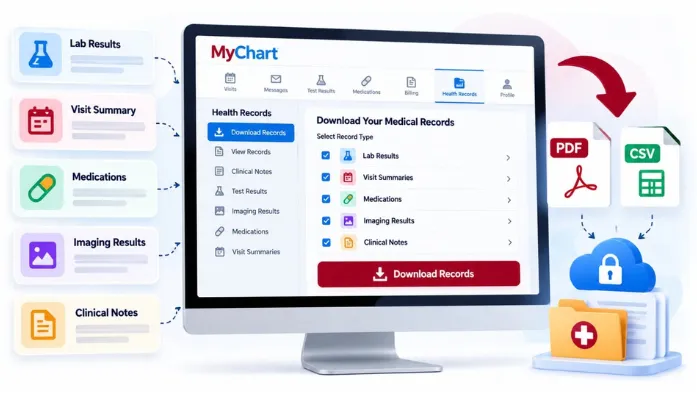
You are able to download available medical information and documents from MyChart. The exact options depend on your healthcare organization and the type of record.
- Sign in to your MyChart account.
- Open the health information, medical records, or documents section.
- Select the medical record or document you want to download.
- Review the available information before downloading it.
- Look for the Download, Save, or Export option.
- Select the available download option.
- Choose where you want to save the file on your device.
- Open the downloaded file to make sure the information is complete.
- Use the Print option if you need a paper copy of the available record.
- Contact your healthcare organization if the record you need is not available for download.
How to Share Medical Records From MyChart
MyChart provide options for sharing available health information with other people or healthcare providers.
- Open the medical record or health information you want to share.
- Check whether a Share, Download, or Export option is available.
- Select the available sharing option in MyChart.
- Choose the healthcare provider or authorized recipient when supported.
- Download the record if direct sharing is not available.
- Send the downloaded record through a secure method.
- Check individual test results for available sharing options.
- Review available health information sharing settings in MyChart.
- Contact your healthcare organization if you cannot find a sharing option.
MyChart Medical Records Problems and Solutions
Medical records missing, delayed, or unavailable in MyChart for different reasons. The following problems and solutions can help you identify what to check.
Why Are My Medical Records Not Showing?
A record may not appear because it has not been released or is not available through MyChart. Check the relevant record section and contact your healthcare organization if needed.
Medical Records Missing in MyChart
Some records are not included in the patient portal. Contact your healthcare provider or medical records department to request information that is not available.
MyChart Records Not Updated
Recently added information takes time to appear in MyChart. Check again later or contact your healthcare organization if the record remains outdated.
Test Results Not Showing
A test result does not appear until your healthcare organization releases it. Check the test results section and contact your provider if you expected a result to be available.
Clinical Notes Not Showing
Clinical notes are not available for every visit or account. Check your available records and contact your healthcare organization if you need a specific note.
Hospital Records Not Showing
Some hospital information is not available through MyChart. Check that you are viewing the correct healthcare organization and contact the hospital if the record is missing.
Medical Records Not Available in MyChart
MyChart does not necessarily provide every part of your complete medical record. Request the specific records you need through your healthcare organization’s medical records department.
Refresh Your MyChart Account
A temporary loading issue is preventing records from appearing correctly. Refresh the page or restart the MyChart app and check again.
Check the Correct Healthcare Organization
Records are connected to the healthcare organizations that provide them through MyChart. Make sure you are viewing the correct organization or linked account.
Check Available Record Sections
Different types of information may appear in different MyChart sections. Check health information, test results, visits, documents, and other available areas.
Check Whether the Record Has Been Released
Some records may not appear until your healthcare organization releases them through MyChart. Wait for the release or contact your provider for more information.
Contact Your Healthcare Provider
Contact your healthcare provider when a record you need is missing or incorrect. They can explain whether the information can be added or accessed through MyChart.
MyChart Medical Records vs Official Medical Records
|
MyChart Medical Records |
Official Medical Records |
|
Shows information available through the patient portal |
May contain the complete record maintained by the provider |
|
Access depends on your healthcare organization |
Maintained by the healthcare organization |
|
Some records can be viewed online |
Additional records may require a formal request |
|
Some information may be downloadable |
Records may be provided in another format |
Conclusion
MyChart makes it easier to access health information that your healthcare organization makes available through the patient portal. You are able to view visit summaries, test results, clinical notes, medications, and other medical information.
The records available in MyChart vary by healthcare organization and account. If a record is missing or you need your complete medical record, contact your healthcare provider or medical records department.