MyChart Messages – Complete Guide to Sending and Managing Messages
Need to contact your doctor without making a phone call? MyChart Messages helps eligible patients communicate securely with their healthcare team through the patient portal.
We explain how to send and reply. You will also learn how to find conversations, manage notifications and attachments, use proxy messaging, and fix common messaging problems.
What Are MyChart Messages?
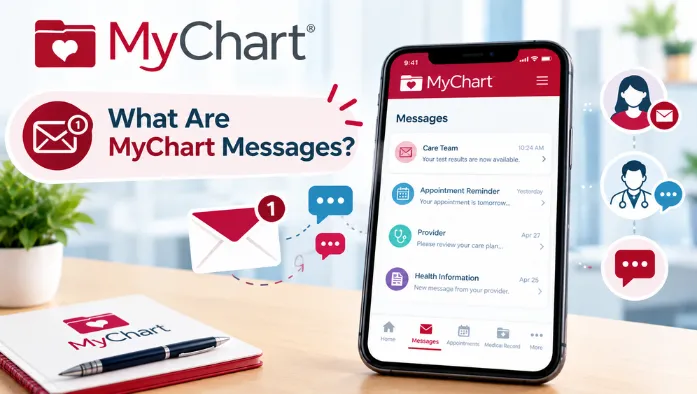
They are communications available within your MyChart account. They appear in the Message Center, where messages and conversations are organized for easy access.
The Message Center also includes automated communications, drafts, and other updates from your healthcare organization. The options you see can vary depending on how your provider has configured MyChart.
How to Send a Message in MyChart
Follow these steps to choose a message type, select a recipient, write your message, and send it through MyChart.
- Open MyChart and go to the Messages or Message Center section.
- Select the option to send a new message.
- Choose the appropriate message type or topic.
- Select an available healthcare provider or care team.
- Write your message with the relevant details.
- Review the message before submitting it.
- Select Send to deliver your message.
How to Message Your Doctor in MyChart
MyChart allows you to communicate directly with an eligible doctor or care team. The following options explain common ways to use this feature.
Message Your Primary Care Provider
If your primary care provider offers MyChart messaging, select them from the available recipients and write your question.
Message Your Care Team
Select the appropriate team and provide enough information for them to understand your request.
Ask Your Doctor a Medical Question
Describe your question clearly and include relevant symptoms, medications, or recent care information when appropriate.
Continue an Existing Conversation
Open the relevant conversation in your Message Center and select Reply if the option is available. Continuing an existing conversation can keep related communication together.
What Can You Use MyChart Messages For?
|
Message Type |
Common Use |
|
Ask about a non-urgent health concern |
|
|
Symptoms |
Provide information about non-urgent symptoms |
|
Medications |
Ask questions about an existing medication |
|
Prescription refills |
Request an eligible medication refill |
|
Test results |
Ask questions about available results |
|
Referrals |
Request or ask about specialist care |
|
Billing |
Contact the billing team about available concerns |
How to Reply to a MyChart Message
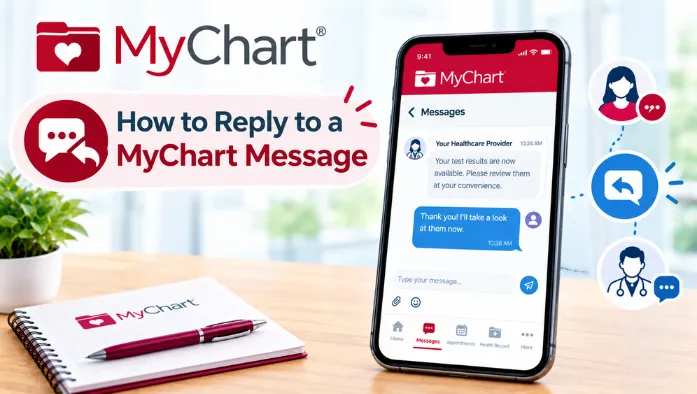
You can continue a conversation when a reply option is available. Follow these steps to respond to a message from your provider or care team.
- Open the Message Center.
- Select the conversation you want to read.
- Review the message from your provider.
- Select Reply if the option is available.
- Write your response.
- Add an attachment if supported.
- Review your response and select Send.
How to Find Messages in MyChart
You can use the Message Center to access different types of messages. The following sections explain how to find messages through search.
View Your Conversations
Open the Message Center and select a conversation to view related messages and replies. Conversations can keep communication about the same topic together.
Find Sent and Received Messages
Your sent and received communications may appear within conversations or separate message sections. The exact organization depends on your MyChart setup.
Find Unread or Old Messages
Unread messages may have an indicator in the Message Center. Older messages may remain available depending on your healthcare organization’s retention policies.
Search Your Messages
If message search is available, enter a relevant word or phrase to locate a conversation. Search features are not identical across all MyChart implementations.
MyChart Message Notifications
MyChart notifications alert you when new messages are available. The following sections explain the different notification options and how to manage them.
New Message Notifications
MyChart may notify you when a new message is available from your healthcare organization. The notification method depends on your communication preferences.
Email, Text, and Push Notifications
Depending on your organization, you receive email, text, or mobile push notifications. These alerts direct you to MyChart rather than replacing the secure Message Center.
How to Turn On Message Notifications
Open your MyChart communication or notification settings and enable the available message alerts.
Message Notification Not Working
If notifications remain unavailable, open the Message Center directly to check for new messages.
Why Can’t I Message My Doctor in MyChart?
Your doctor may not be available for MyChart messaging because of their settings or your account access. Some providers only accept messages from eligible patients or for specific topics.
If you cannot find your doctor or specialist, check the available recipients or care team options in MyChart. If the provider is still unavailable, contact your healthcare organization.
MyChart Messages on Phone and Computer
You can access Messages through supported mobile devices and computers. The available messaging features can vary depending on your healthcare organization’s setup.
Messages on the Mobile App
Open the MyChart app and select Messages or Message Center. You can read conversations, send messages, and reply to available communications from your phone.
Messages on iPhone and Android
MyChart messaging is available through the mobile app on supported iPhone and Android devices. Keep the app updated and allow notifications if you want message alerts.
Messages on a Computer
Open MyChart in a supported web browser and access the Messages section. You can read conversations, send messages, and reply when those options are available.
How to Fix MyChart Messages Not Working
Try these troubleshooting steps to resolve common MyChart messaging problems. The following sections explain simple fixes for connection, app, browser, and notification issues.
Check Your Internet Connection
A weak connection can prevent messages from loading or sending. Check your internet connection and try again.
Refresh MyChart or Restart the App
A temporary MyChart issue may affect messaging. Refresh the page or close and reopen the app.
Update the MyChart App
An outdated app can cause messaging problems. Check your app store and install any available MyChart update.
Try a Different Browser
Your current browser may be causing the problem. Open MyChart in another supported browser and try messaging again.
Check Notification Settings
Disabled notifications can prevent new message alerts from appearing. Check both MyChart and your device notification settings.
Contact Your Healthcare Organization
Some messaging issues may be related to your healthcare organization’s settings. Contact their MyChart support team if the problem continues.
MyChart Appointments
MyChart messaging can sometimes be used for appointment-related questions, although appointment management features are handled separately.
Can You Message Your Doctor About an Appointment?
You may be able to send an appointment-related question through MyChart if your provider accepts those messages. Use the appointment-specific option when available.
MyChart Appointment Request Message
Some appointment requests can generate communications in your Message Center. Check your messages for updates or instructions from the healthcare organization.
Appointment Follow-Up Message
Your provider sends follow-up information after an appointment through MyChart. Review the message for any instructions or recommended next steps.
Can You Ask to Reschedule Through MyChart?
Some organizations allow appointment changes through MyChart, while others may require you to contact the office directly. Use the scheduling options available in your account.
How to Keep Messages Secure
You can secure your messages by following these simple steps:
- Use a strong MyChart password and do not share it.
- Avoid accessing your account on untrusted devices.
- Log out after using MyChart on a shared computer.
- Keep your phone protected with a screen lock.
- Enable available security and verification features.
- Do not share private messages with unauthorized people.
Conclusion
MyChart Messages provides a convenient way to communicate with eligible doctors and healthcare teams about non-urgent healthcare needs. You can send and reply to messages, ask questions about available services, request certain refills or referrals, and receive important communications through the Message Center.
The exact features vary by healthcare organization. If you cannot send a message, find your provider, receive notifications, or access your conversations. Use the troubleshooting steps above or contact your healthcare organization’s MyChart support team.